
I almost quit Microsoft Ads. 9 in 10 of my clicks looked like bots.
Hey, it was trash. It probably is for you too, and this is how I cracked it. Quit Microsoft Ads? Never tried it because they say it doesn’t work? Still paying every day and calling it normal? Here is how I stopped paying for most of the 9 and pointed the budget at the 1 in 10 who actually search for what you sell.
Based on my own Microsoft Ads tests. Figures changed.
The short version
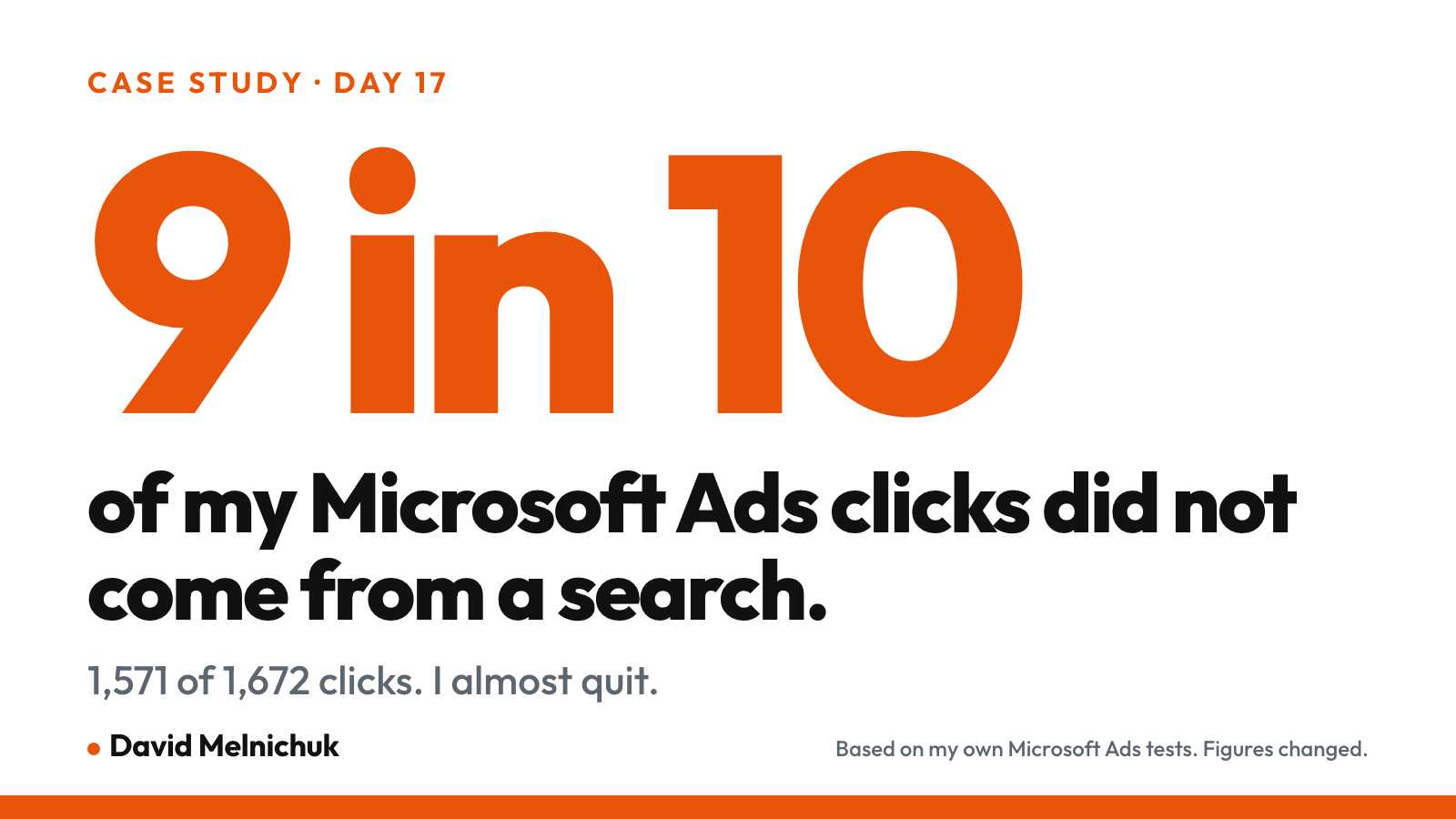
1,571 of 1,672
of my first Microsoft Ads clicks came from websites and apps, not from a search.
The business
Search ads. 1,672 clicks. About $1,900.
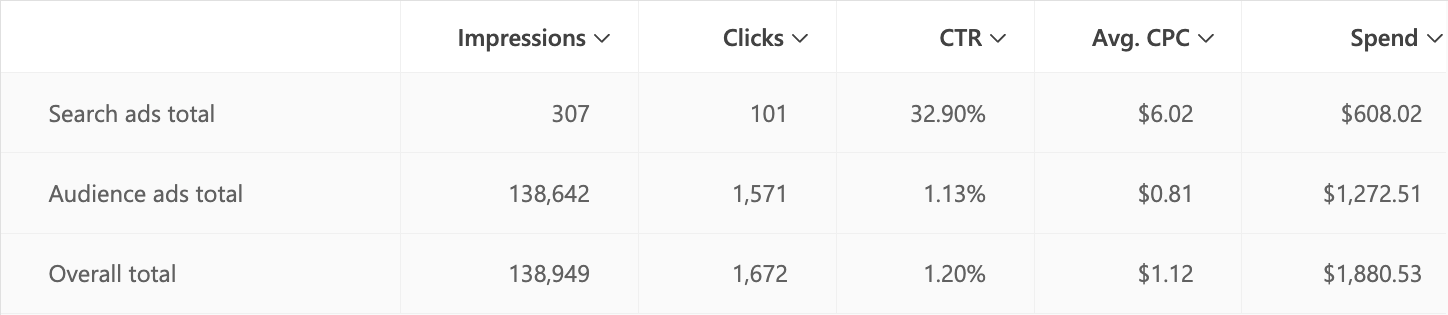
Microsoft’s own report: Search, 101 clicks. Audience, 1,571 clicks.
I had set up search ads.
The quick story. Microsoft was quietly showing my search ads on hundreds of websites and apps, and 1,571 of my first 1,672 clicks came from there. The fix was buried deep: settings on screens most people never open. I changed them one afternoon, and within about an hour those random websites stopped. These few changes can flip where your clicks come from overnight. Then the leads started coming in, and for really cheap.
This is for you if
- You run Microsoft Ads, or you quit.
- You never tried it because everyone says it does not work.
- You pay by the click and cannot say where your clicks come from.
Why I wanted Microsoft at all
Most business owners I know only run Google ads. I wanted a second place to buy clicks. And search is the highest-intent traffic there is: people actively looking for what you offer, right now. So why wouldn’t I want more of it?
I built a Microsoft campaign: $100 a day, exact search phrases, the whole US.
The problem
Why I almost quit
I spent about $1,900 and got 1,672 clicks. And no leads. From search traffic, the traffic that is supposed to be the easiest to turn into leads. That made no sense.
It did not feel real to me, either. Clicks from websites I mostly did not know. Dozens of visits in the same minute. My own site logged about 3,500 visits from the ads, and Microsoft billed me for 1,672 clicks. To me, 9 in 10 of my clicks looked like bots or irrelevant traffic.
Microsoft says it removes invalid clicks when it can, with no promise it catches every case. I cannot see how many it caught, and I cannot see who clicked. I can only tell you where the clicks came from and what it looked like to me.
Where the money went
Microsoft’s report splits your clicks into two kinds:
- Search. Someone types a search and sees your ad. That can be on Bing, on Yahoo, or on a partner’s website where Bing powers the search. A partner site that Microsoft does not own still counts as search, and Microsoft calls it “syndicated search partners”. This is what you thought you were buying.
- Audience. Your ad is shown inside a page or app, like MSN, Outlook, a games site or another publisher’s website, and not on a search results page. Microsoft decides who sees it using signals about the person, like past searches and browsing, not your keywords. It can be someone who searched for something earlier, but they were not searching for you at that moment.
Of my 1,672 clicks, 101 were Search and 1,571 were Audience. About 68% of my money went to Audience. A search click cost about $6. An Audience click cost about 80 cents. Cheap is not the same as good. (Microsoft’s own support answers say search campaigns run on the Audience network by default.)
In my experience, a few big advertisers in each industry seem to soak up this traffic and win on volume. A small budget can get drained by clicks that go nowhere, and the owner quits. That is my experience, not a study.
What we built
How I cracked it
Here is the part I wish someone had told me: none of this is hard. Most of it is just buried. Every fix below comes with the exact clicks, in bold.
Find out where your clicks really come from
This one lives in the reports, not on the front page.
Where to click: Reporting → Templates → Website URL (publisher). Add Date, press Refresh, then click Other URLs for the full list.
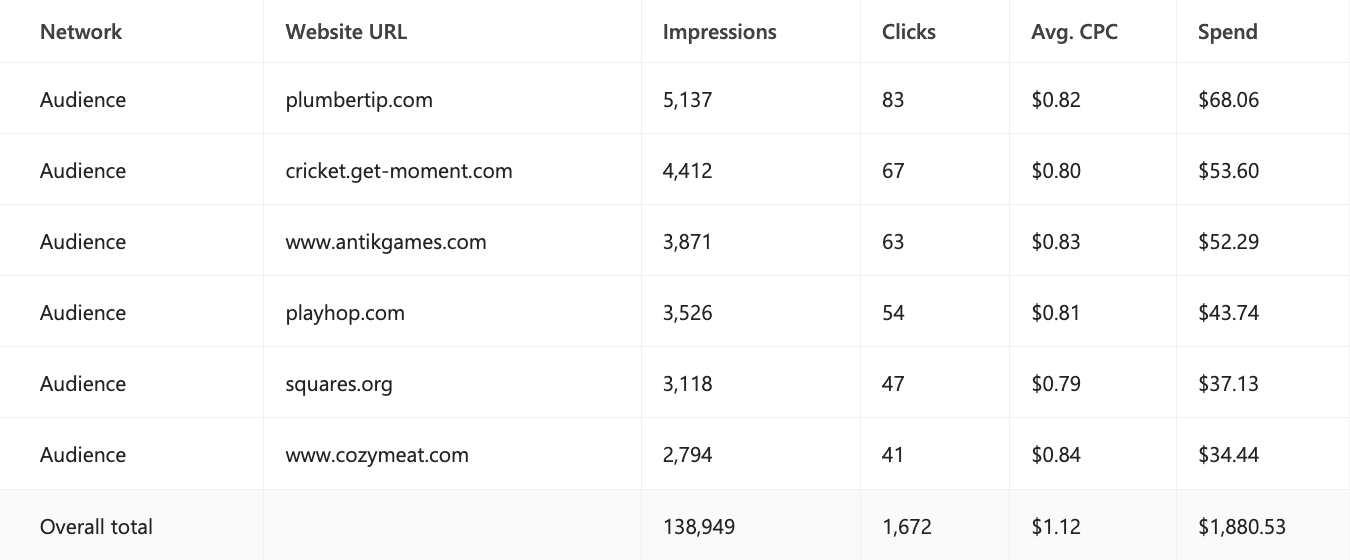
Mine listed about 320 websites and apps. The names in the picture are real examples from my report. Your ads might be showing up on the same kinds of sites, so check yours. Microsoft’s own help page points to this report. For the quick split between Search and Audience, look at the rows Search ads total and Audience ads total on your campaign’s Ad groups page, with the date range set to all time.
If you are like me and almost gave up on Microsoft Ads, check this before you decide why. I do not know that it is why it did not work for you.
Turn off the wide setting (it is on by default)
Microsoft starts every ad group on the wide setting. It sounds helpful: “The entire Microsoft Advertising Network (recommended)”. It means your ads can show almost anywhere. And it hides on each ad group, not on the campaign.
So I ran a test. I switched just one of my ad groups to the narrow option, to see if it would really block all of that. In the report, that ad group showed on none of those websites. The others, left on the default, showed on 320. Same campaign. Same budget. Same block list.
Where to click: Ad groups → open one → Settings → Advanced settings → Ad distribution. Pick “Microsoft sites and select traffic”, not “The entire Microsoft Advertising Network (recommended)”. Do it on every ad group.
(An ad group is a folder of ads and search phrases inside a campaign.)
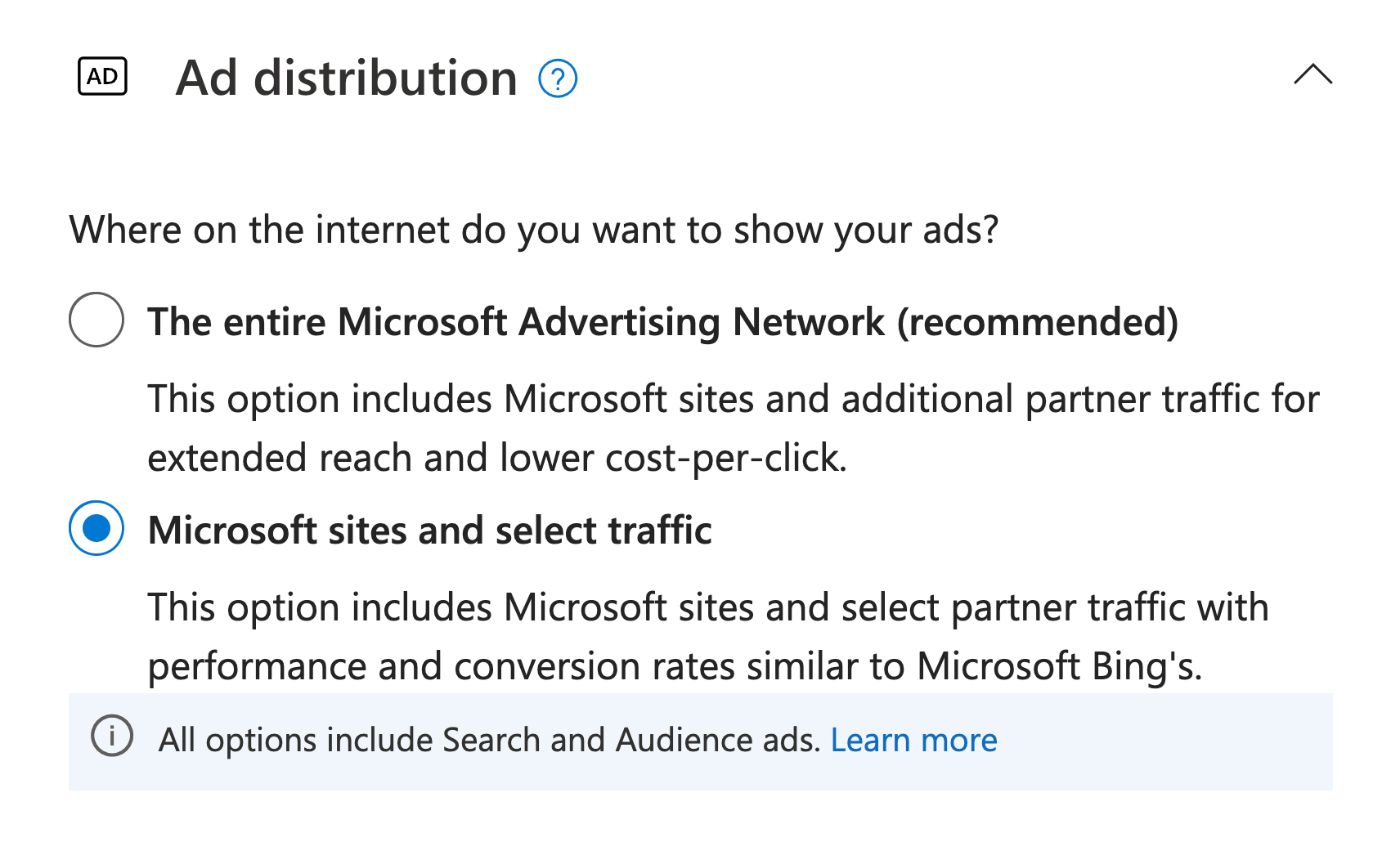
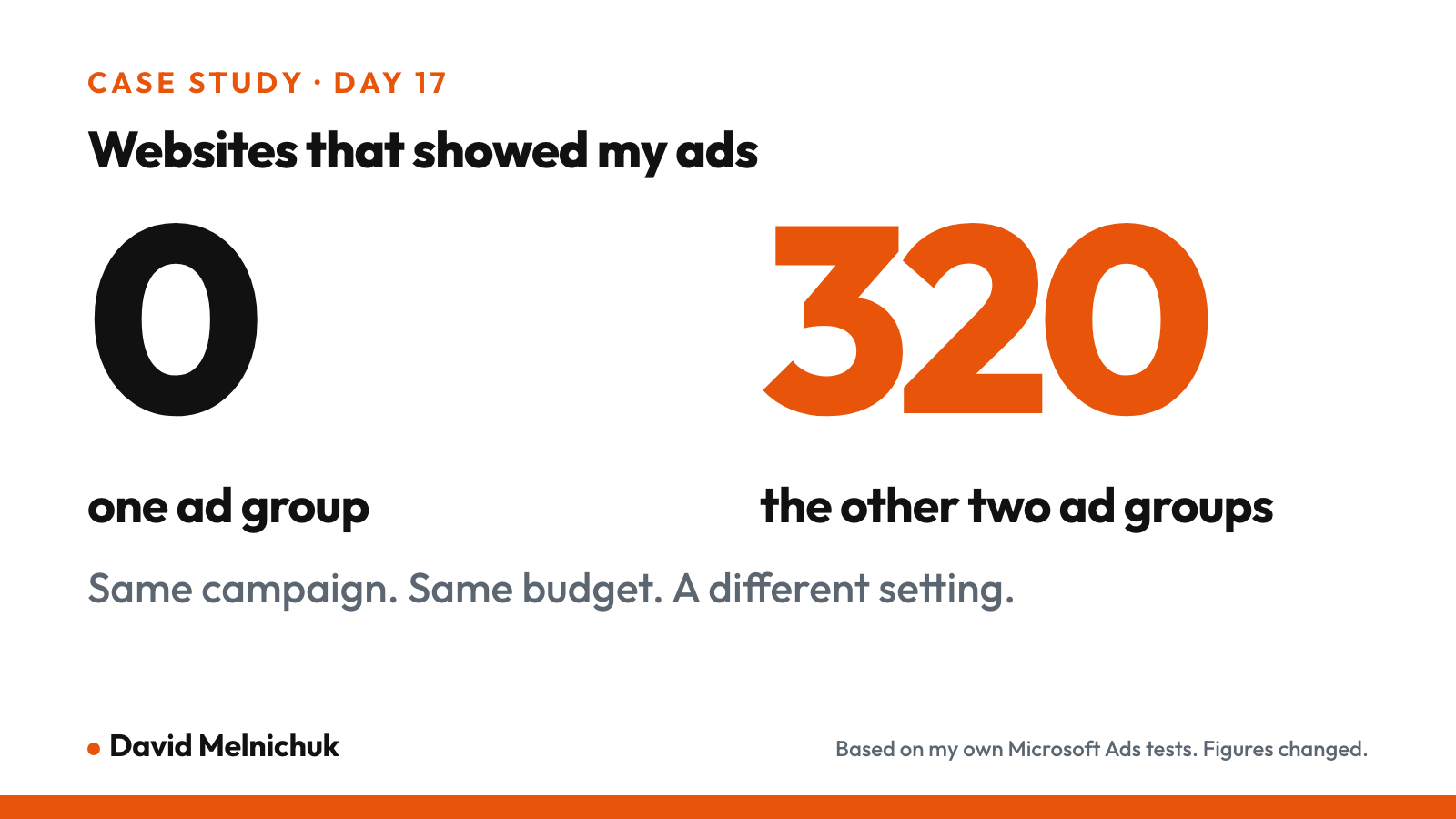
Microsoft says all the options still include some Audience ads, so this narrows it, but it does not switch it off. I will show you how to block what is left right below.
Block the websites and apps
Every website that shows up in the report with ad views goes on the block list. Views, not just clicks, because a view means your ad is out there.
Where to click: Your campaign → Settings → Advanced settings → Website control lists → Manually add websites. One website per line. For apps, add the Mobile Bundle column to the report and paste the app ID (a code like com.company.appname).
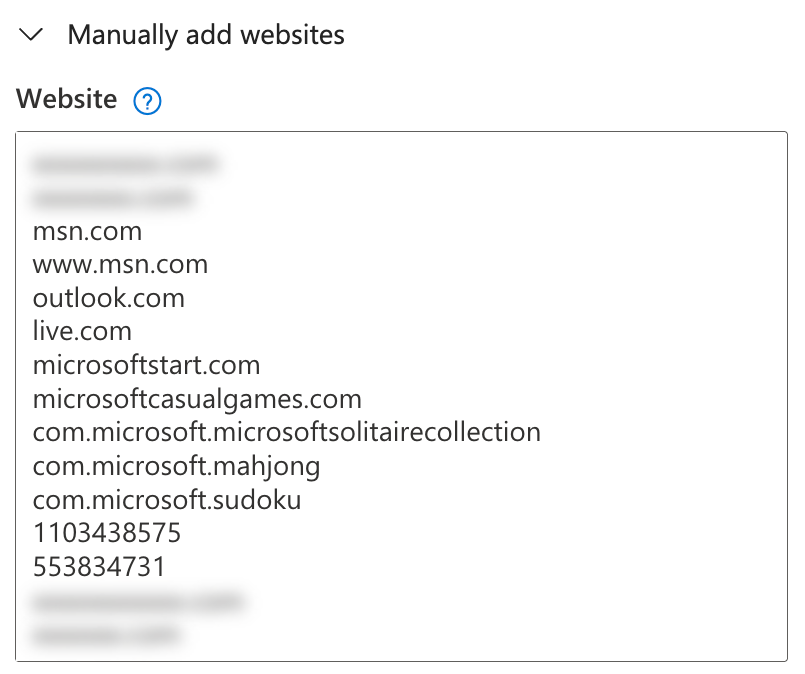
Yes, I even blocked Microsoft’s own sites and games apps. Why? I only want search traffic: people who looked for what I sell. I do not want interruption ads shown to people who never looked for me, even on Microsoft’s own pages. (Microsoft’s help page and Microsoft’s own product disagree on whether its own sites can be blocked, so I am still testing that.)
Say no to visitors with no age on file
This one had a huge effect too, and it is buried deep.
Microsoft sorts visitors by age. Some come back as “Unknown”: no age, no profile, nothing attached to them. That usually means no account behind the click either. About 4 out of 5 of my first clicks were Unknown.
Unknown does not mean fake. I have even gotten leads from Unknown clicks. But on average, I overpay for them, and a lot more clicks that go nowhere come from this group. If someone is known, there is data behind them, and to me that means a real person with a Microsoft account. If they are Unknown, who knows where they came from. On a tight budget, I would rather skip them. That is my take, not a rule.
And here is why it feels impossible to turn off: at the campaign level, Microsoft only lets you lower your bid on Unknown, by 90% at most. It does not give you a way to say no there.
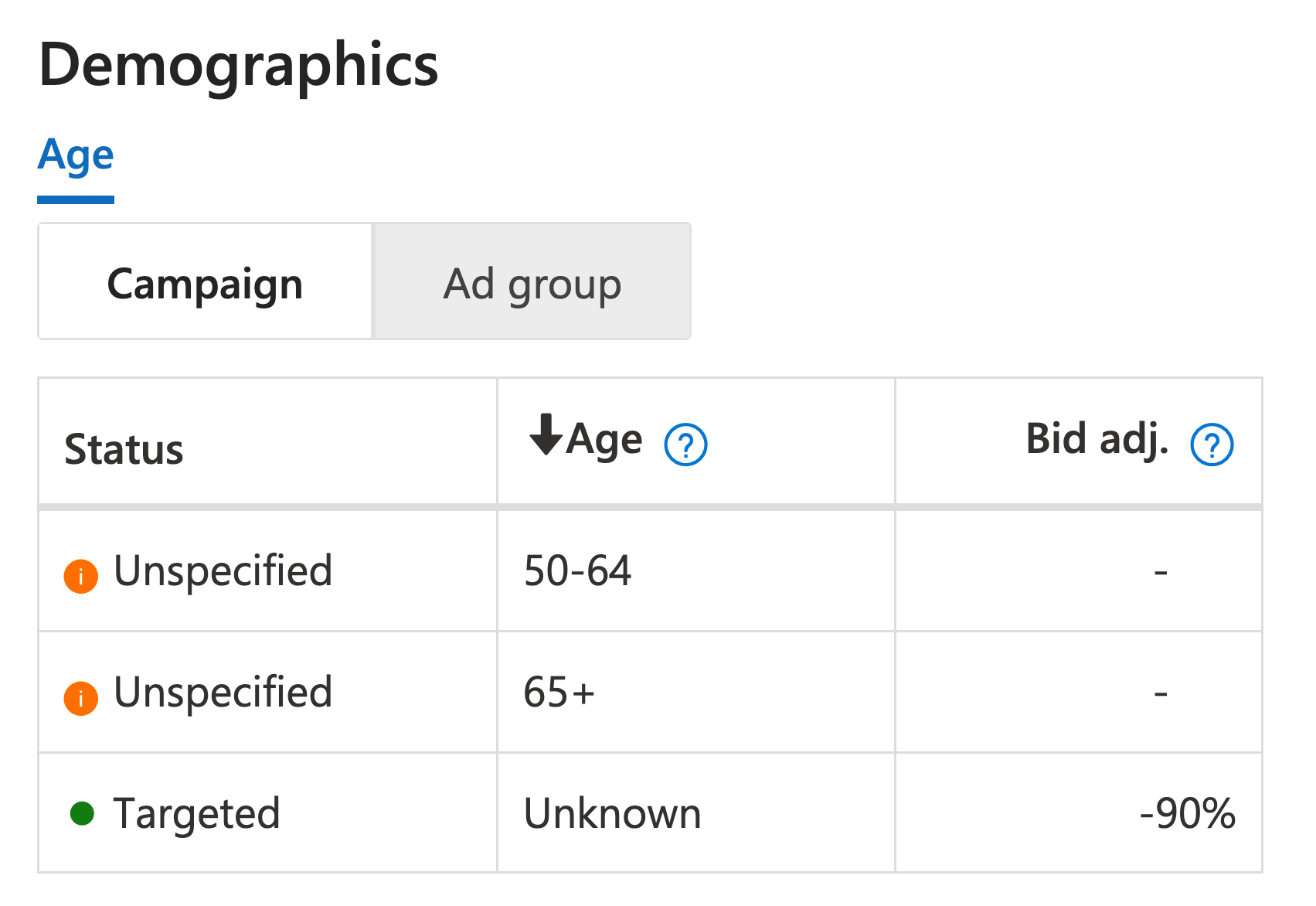
The way to say no is on each ad group.
Where to click: Ad groups → open one → Settings → Bid adjustments → Age. Switch off “Use campaign settings”, tick the Unknown box once, then Save.
Then: Demographics (left menu) → Age → tick the Unknown row → Edit → Exclude.
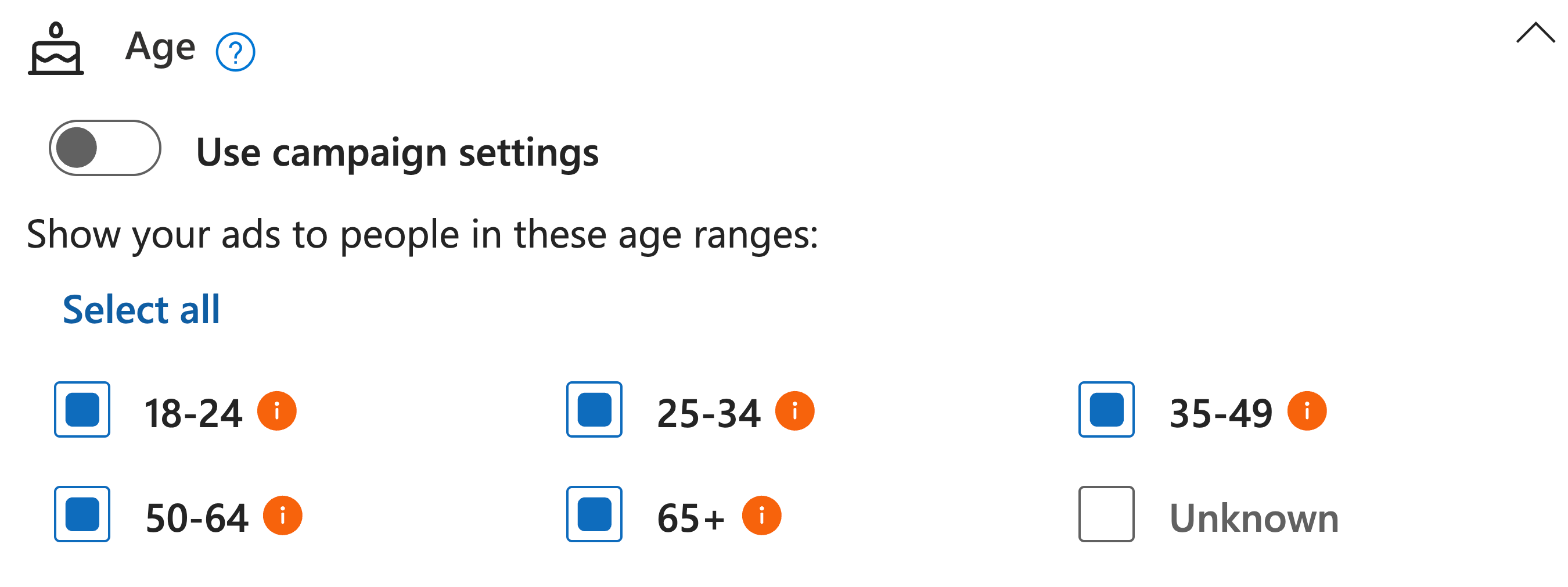
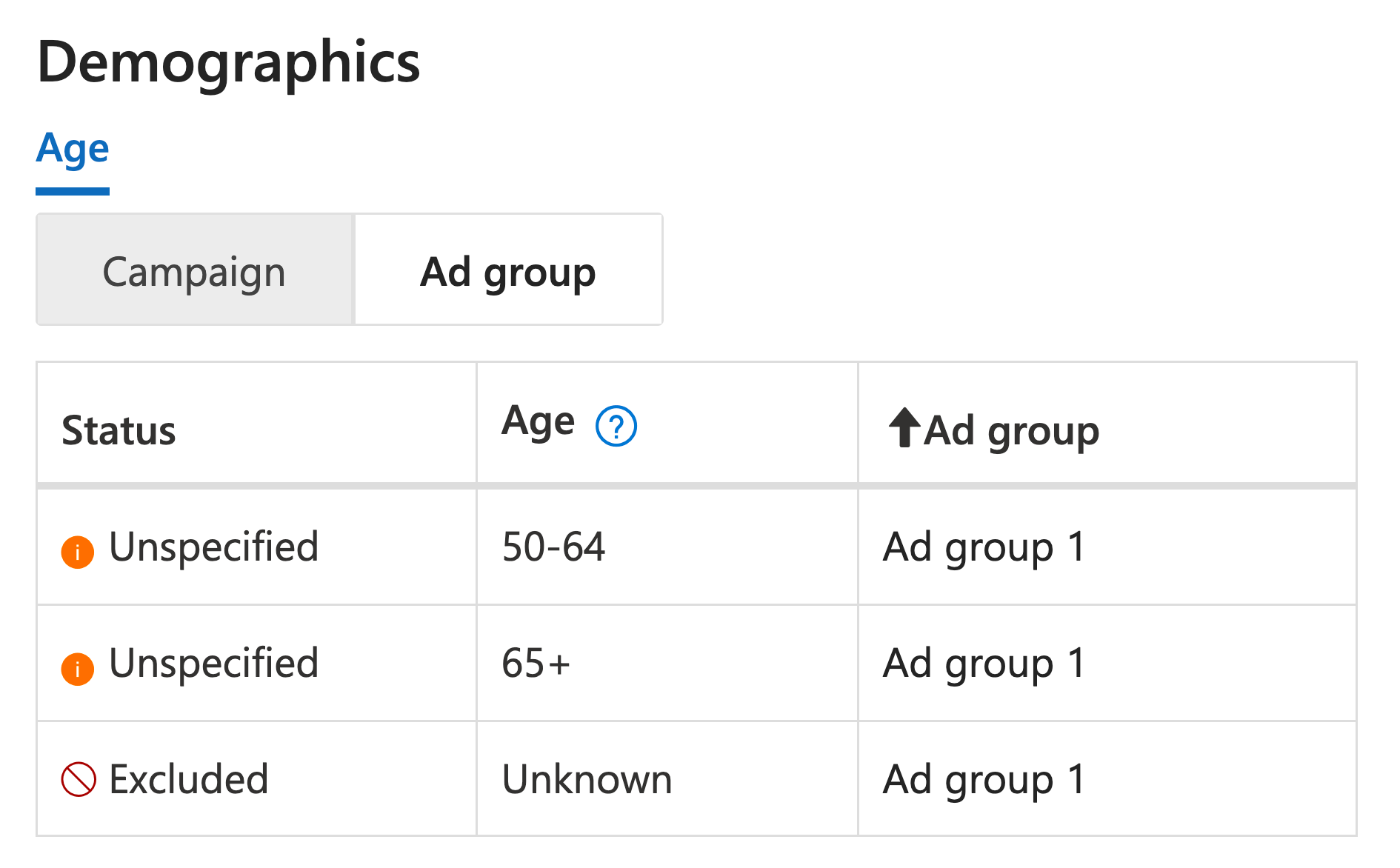
If Microsoft says the ad group uses its campaign’s age settings, the switch did not stick. Go back, switch off “Use campaign settings”, tick Unknown once, save, and then exclude it. Expect fewer clicks. That is the point.
Keep the extras at the minimum
Microsoft keeps offering to boost anything that is not search: images, automatic calls to action, automatic rewriting of your ads and keywords. I came for search. So I turned all of that down to the minimum.
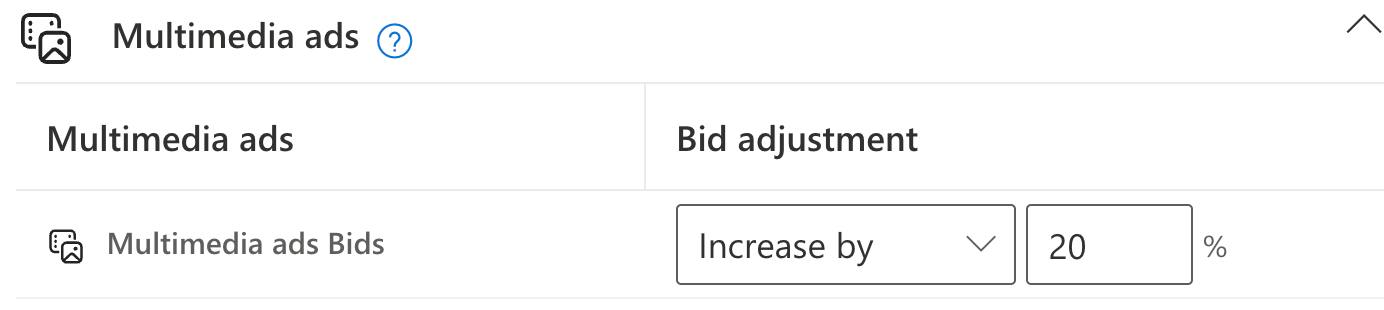
Where to click: Your campaign → Settings → Advanced settings → Multimedia ads. Set the bids to the lowest Microsoft allows (for me, Increase by 20%, down from a 40% default) and untick “Enable autogenerated calls to action for Multimedia ads”.
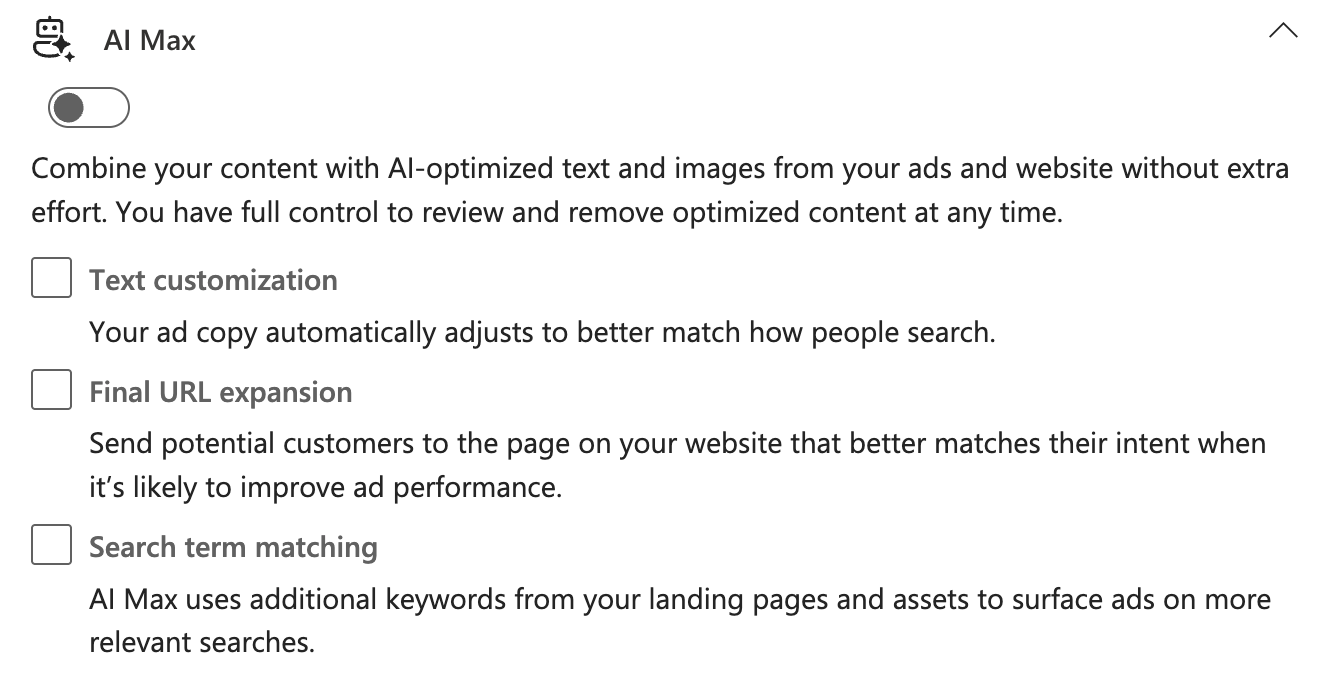
Then: Your campaign → Settings → AI Max. Keep the master switch off, with Text customization, Final URL expansion and Search term matching unticked.

Hand the boring part to an AI agent
This is where the AI comes in, and it is what keeps all of this working while you sleep. Pick an AI agent that can control your browser (for example Claude Desktop) and tell it to do this every day.
First, block the websites. New websites show up in the report every day. Your agent adds all of them to the block list, except the core ones you know are real: Bing and Yahoo searches. Everything else gets blocked, even if it only got ad views and no clicks.
Tell your agent:
“Every morning, open my Microsoft Ads account in my browser (I am already signed in). Go to Reporting, then Templates, then Website URL (publisher). Set the date to yesterday and click Other URLs. Add every website and app on that list to the Manually add websites box in my campaign settings, one per line, except Bing and Yahoo, which are real searches. Block everything else, even if it only got ad views and no clicks. Write down every one you add, so I can undo any mistake.”
Then, negative keywords. A negative keyword tells Microsoft: do not show my ad when a search includes this. It is the daily work of search ads.
Here is an example. Say your keyword is “roofing”. Someone searches “roofing ideas”. They are not looking to hire a roofer, so that is not a good click. So you block “roofing ideas”. And you also block the single word “ideas”, because any search with the word “ideas” in it is not going to be a good one. That is the trick: do not only block whole searches that could never lead to a buyer. Also block the single words inside them that spoil a search whenever they show up, like “ideas”, “free” or “jobs”.
Where to click: Your campaign → Keywords → Negative keywords. To see what people really searched: Keywords → Search terms.
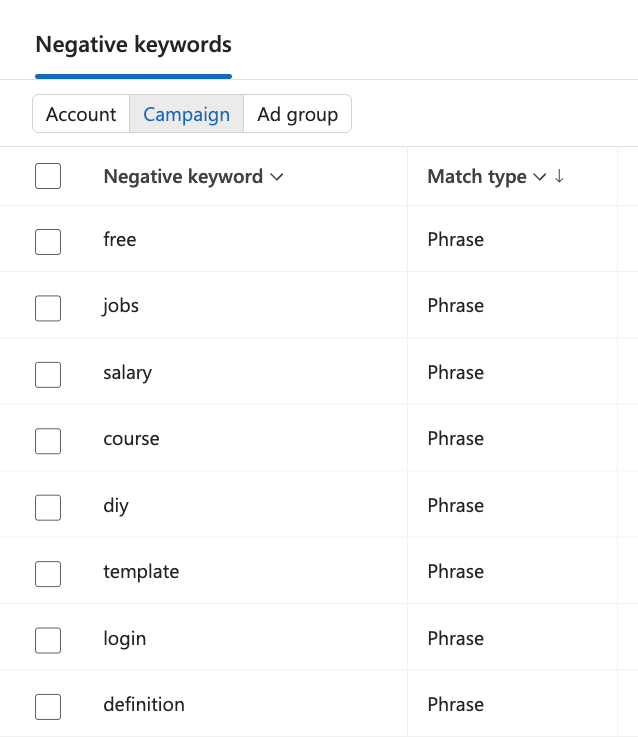
Tell your agent:
“Every morning, open my Microsoft Ads account in my browser (I am already signed in). Go to my campaign’s Search terms report for yesterday. For every search that could never turn into a customer for [what I sell], add it as a negative keyword. Also add the single words inside those searches that spoil a search whenever they show up, like ideas, free, jobs, salary, course or DIY. Write down every word you add, so I can undo any mistake.”
Sign in to Microsoft Ads yourself first, and never paste your password into a chat. The agent works in the browser you already signed in to. It needs that browser connected, so it can miss a night. Mine runs every night.
The result
1,571 of 1,672
of my first Microsoft Ads clicks came from websites and apps, not from a search.
What changed
| Before | After | |
|---|---|---|
| Clicks from random websites | 1,571 of 1,672 | Almost none |
| Ad views on those websites | About 200 an hour | A trickle, then none for days |
| The test ad group on the narrow setting | Showed on none of them | Same |
| Share of my money spent on search clicks | About 32% | About 95%, and rising |
Right away, I stopped hemorrhaging money. My budget use dropped by about 90%, and what I still spent went only on clicks I was confident came from real people searching, not the garbage traffic I was paying for before.
And then the leads started coming in. All of a sudden, and for really cheap. This is what I expected from day one. It just was not happening because of all that garbage. When your whole budget goes to people who are actually searching for what you sell, those are the people who actually reach out.
That is the whole trick: a few settings, one afternoon.
Steal this
Want to build this yourself? Here is how it was built, in plain words. The idea fits any business that pays for clicks and wants to see where they come from.
| The piece | What it does |
|---|---|
| Microsoft Advertising | The advertising platform where you run search ads |
| Claude Desktop (or any AI agent that can control your browser, like Grokbot) | Opens the ads account in your browser on a schedule, reads the report and the search terms, adds blocks and negative keywords, and warns you about anything new |
| Your site’s visit log | Records which website each visitor came from, when the click passes it along, and how many visits arrive |
| Microsoft’s conversion tag | Counts leads and purchases, so you can see what each lead costs |
Want an AI agent that reads your ad reports every day? Have us build it for you.
Is your business in the same spot?
In 30 minutes we'll look at your version of this problem and how an AI system could handle it for you.
Book an AI opportunity audit, $249